 Doc Scan
How to save a web page as PDF on iPhone
Articles get edited, paywalled or deleted. Saving a page as PDF keeps a copy you can read offline, annotate or send.
Updated
Free, with apps already on your iPhone
Use Safari
Safari can turn the page you are reading into a PDF.
- Open the page in Safari and take a screenshot.
- Tap the screenshot preview, choose Full Page at the top, then Done.
- Choose Save PDF to Files.
You get the whole page as one long sheet, ads and menus included, which is awkward to print or read later.
With Doc Scan
Use Doc Scan
Doc Scan imports a web page as normal document pages, keeping just the article if you like.
- Tap +, then Web, and enter the page address.
- Choose Article Only to drop menus and ads, or Whole Page to keep everything.
- The page becomes a document in your library, split into pages.
- Tap Share, then PDF; add page numbers, a watermark or a password if you need them.
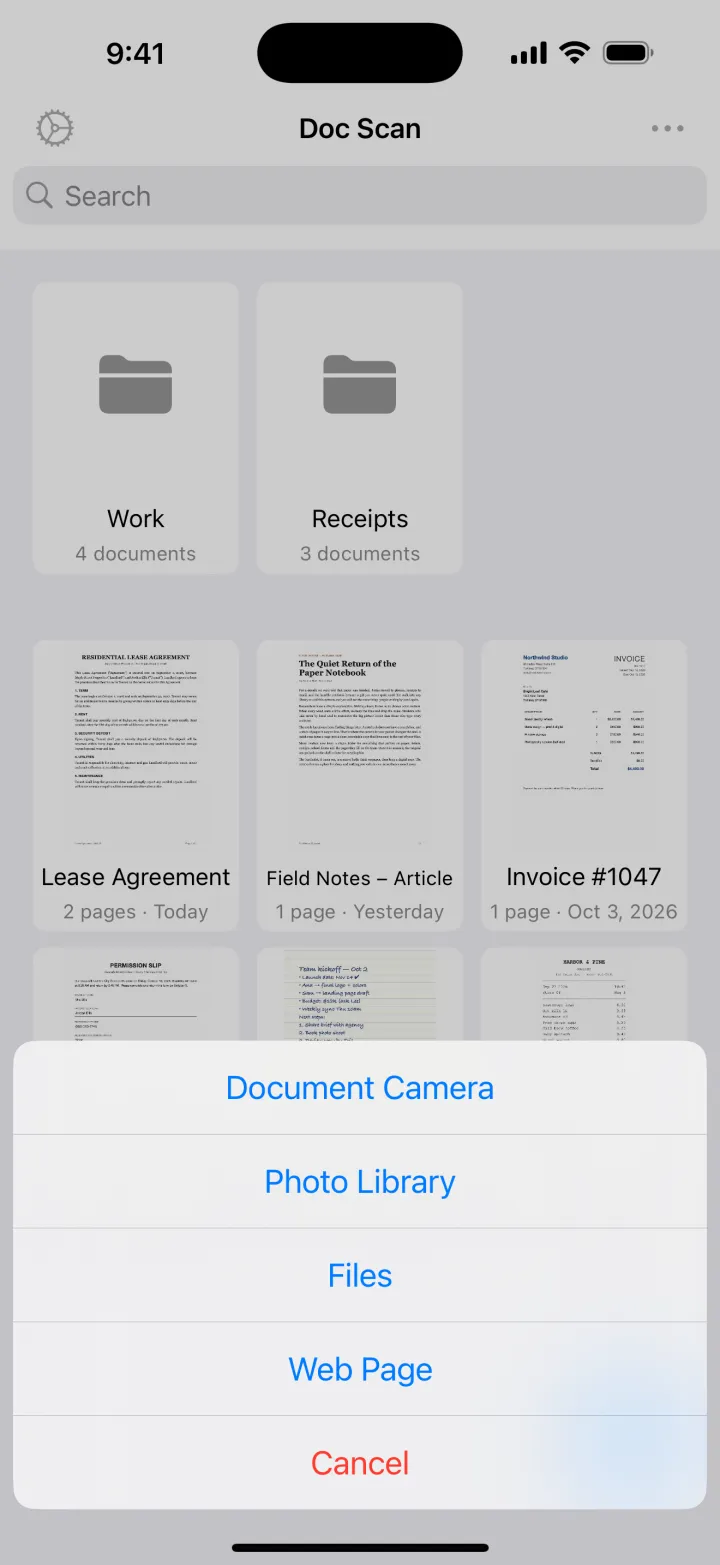
Importing web pages is free. PDF export is part of Premium; JPG export is free.
Download on theApp StoreTips
- Article Only works best on news and blog pages; use Whole Page for pages with tables or forms.
- Recently imported addresses are listed, so you can grab an updated copy later.
- Run OCR on the saved pages if you need to copy quotes from them.
Questions
Can I save pages that need a login?
Doc Scan loads the page itself, so pages behind a login or paywall may not import. Use Safari’s full-page screenshot for those.
Do links still work in the PDF?
No. Doc Scan saves what the page looks like, as pages of a document.
Can I read the saved page offline?
Yes. Once imported, the document is stored on your device and in iCloud if sync is on.