 Doc Scan
How to sign a PDF or document on iPhone without printing
Print, sign, scan, send: that loop is over. Here is how to add your signature to a PDF, or to a paper form you have just scanned, right on your iPhone.
Updated
Free, with apps already on your iPhone
Use Markup in Files
Markup is built into Files, Mail and Photos.
- Open the PDF in Files, or the attachment in Mail.
- Tap the Markup (pen) button, then + and Add Signature.
- Sign with your finger, tap Done, then drag and resize the signature into place and tap Done again.
Fine for one PDF that is already on your phone. Paper forms have to be scanned somewhere else first, and each page is signed one at a time.
With Doc Scan
Use Doc Scan
Doc Scan handles the whole loop: scan the paper form, sign it, send the PDF back.
- Scan the form with +, then Scan, or import a PDF with +, then File.
- Open the document and tap Sign. Draw your signature and save it to your Signature Library for next time.
- Move and resize it, change the color or stroke width, and choose Apply to All Pages if every page needs it.
- Tap Share, then PDF, and send it by Mail, Messages or any app.
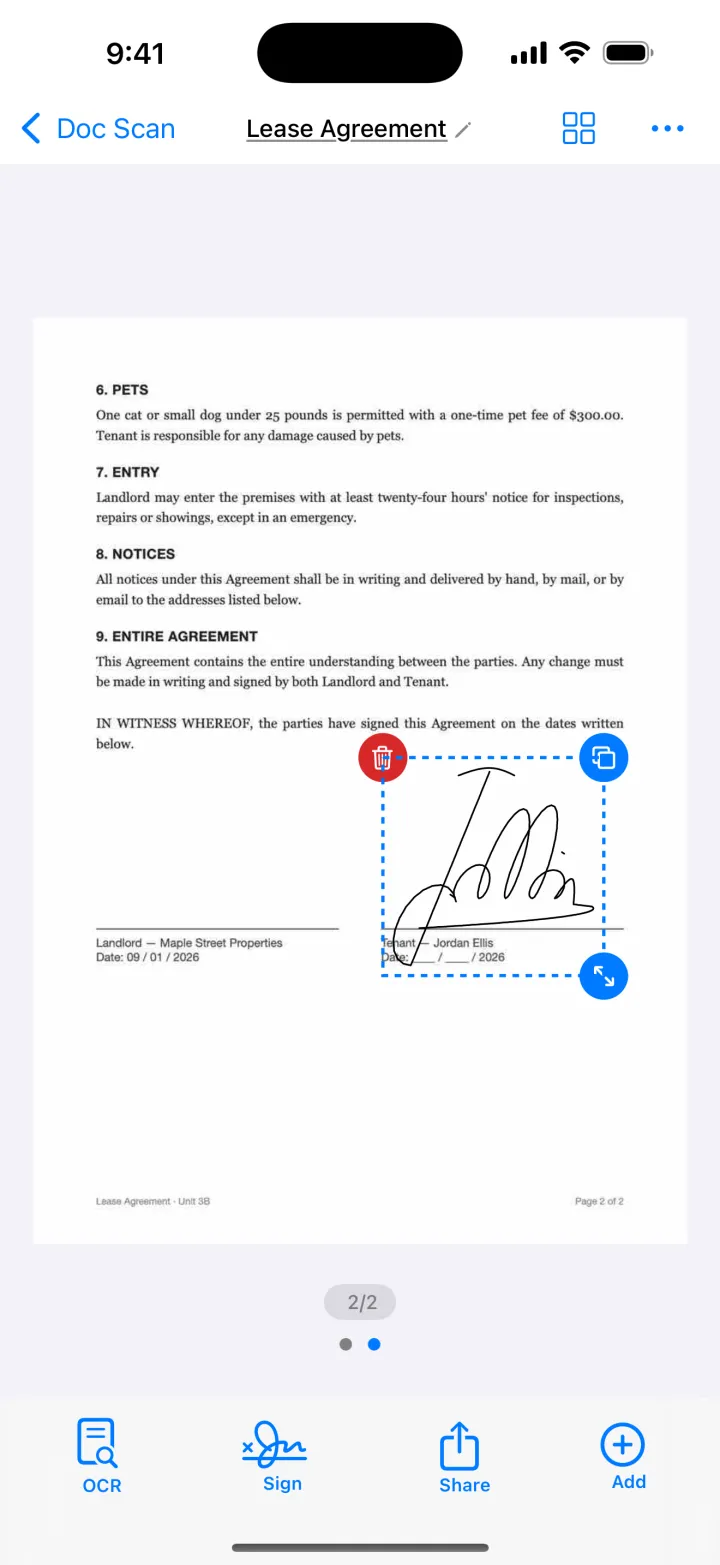
Signatures and PDF export are part of Premium.
Download on theApp StoreTips
- Sign with a stylus or slowly with a fingertip, and zoom in while drawing for a cleaner line.
- Dark blue reads as a real pen signature on most forms; black works everywhere.
- Add a password to the PDF when the signed document contains personal details.
Questions
Is a signature drawn on iPhone legally valid?
In many countries a drawn electronic signature is accepted for everyday agreements, but rules vary by country and document type. Check when in doubt.
Can I reuse my signature?
Yes. Doc Scan keeps signatures in a library; Markup in iOS also remembers the ones you add.
Can I sign a document someone emailed me?
Yes. Save the attachment to Files, then open it in Doc Scan with +, then File, or sign it with Markup.