 Doc Scan
How to scan and organize receipts on iPhone
Receipts fade, crumple and disappear exactly when you need them. Scanning them the day you get them, into one folder with clear names, is the whole system.
Updated
Free, with apps already on your iPhone
Use Files with a receipts folder
Files can scan straight into a folder in iCloud Drive.
- In Files, create a folder called Receipts.
- Open it, tap •••, then Scan Documents, and capture the receipt.
- Tap Save, then rename the file with the date and shop so it is easy to find.
Works, but every receipt is a separate PDF, and you cannot copy an amount from the scan without Live Text.
With Doc Scan
Use Doc Scan
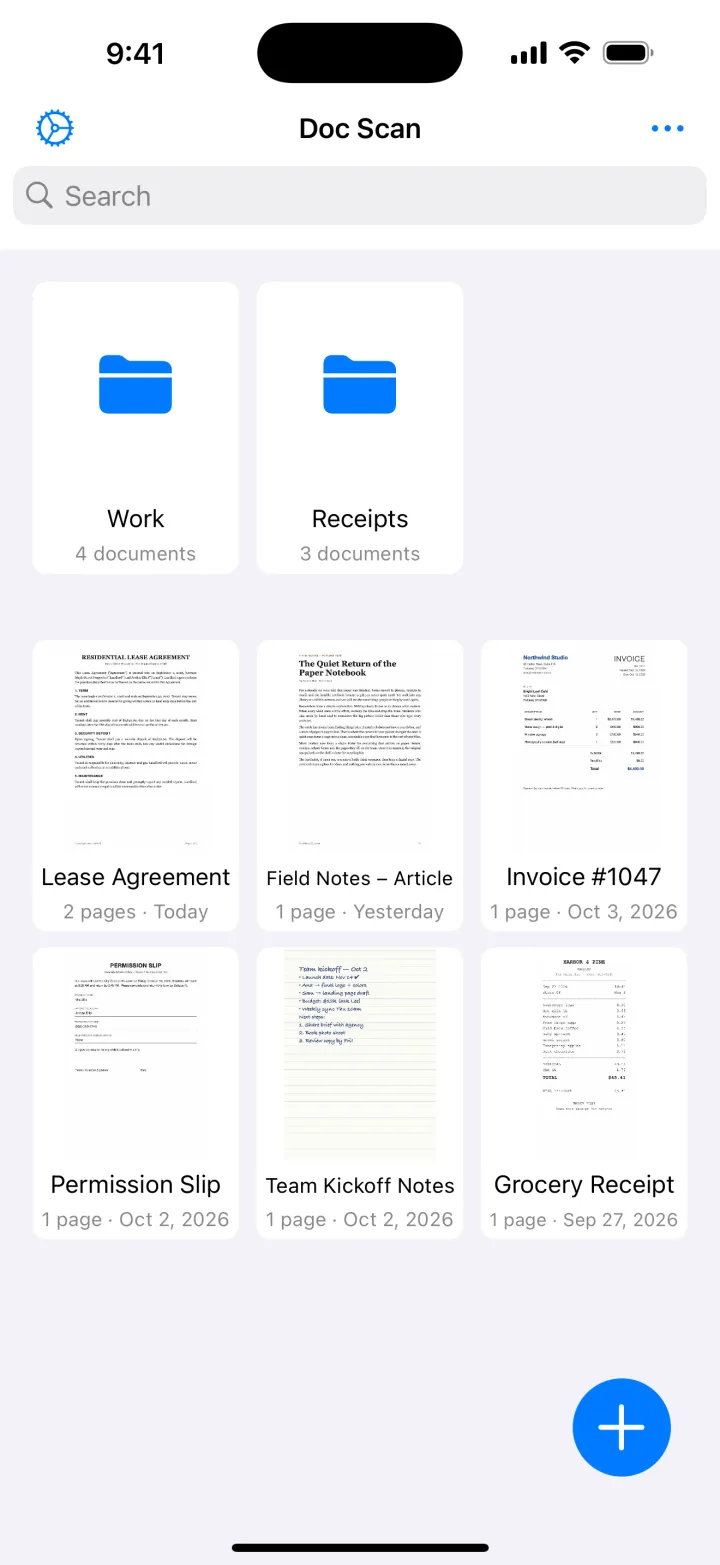
Doc Scan keeps receipts as documents in folders, synced to all your Apple devices.
- Create a folder (for example Receipts 2026) on the home screen.
- Tap +, then Scan, and capture the receipt; long thin receipts can be scanned in two parts into one document.
- Touch and hold the scan to Change Title and Move to Folder.
- Find it later with search, and Share it as JPG or PDF when you file the expense.
Scanning, folders, search and JPG export are free. Copying amounts with OCR and PDF export are part of Premium. Doc Scan does not total or categorize expenses for you.
Download on theApp StoreTips
- Name receipts as date, shop and amount, for example 2026-10-24 Hardware store 39.90.
- Thermal-paper receipts fade within months; scan them on the day you get them.
- Use Enhance on crumpled receipts and Black & White on faint print.
Questions
Are scanned receipts accepted for taxes and expenses?
Many employers and tax offices accept clear digital copies, but requirements differ by country. Keep the originals when you are unsure.
Can I scan a receipt someone sent me as a photo?
Yes. Use +, then Photo in Doc Scan to bring it in, then crop and clean it like a scan.
Will my receipts be on my other devices?
Yes, with iCloud sync turned on they appear on your iPhone and iPad.